Set up guide
CowAgent login: how web console access and passwords work
How to log in to the CowAgent web console at localhost:9899, set web_password, reach it safely from a server and fix a rejected password.
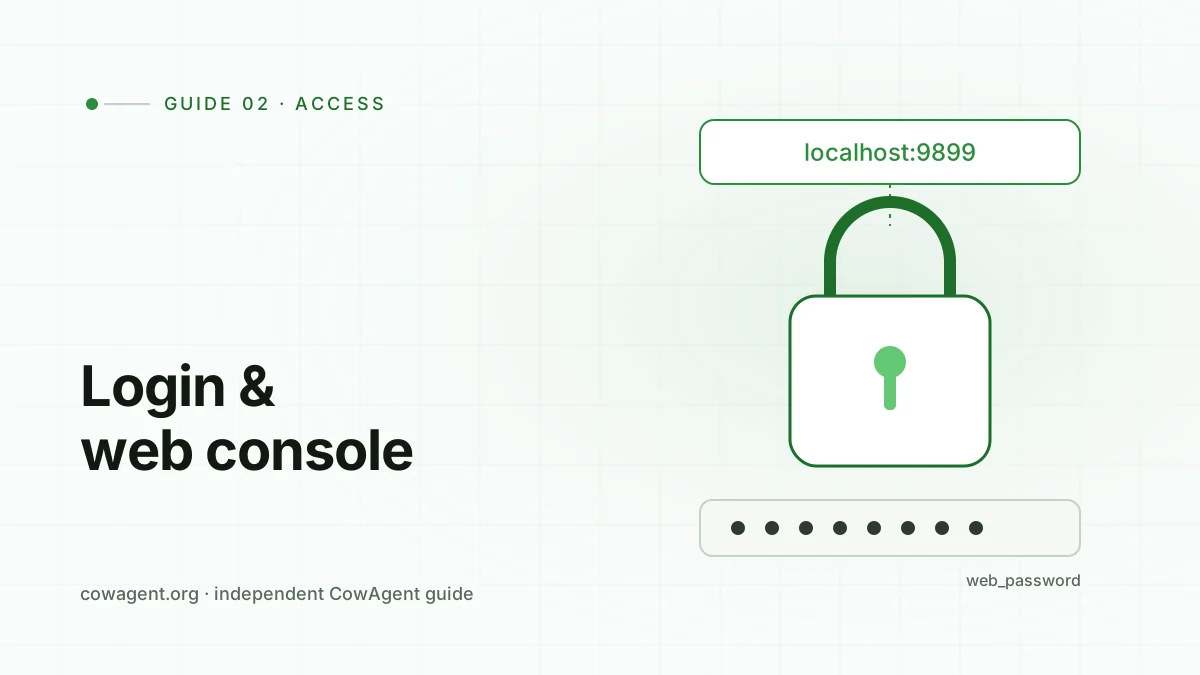
Searches for “CowAgent login” usually come from people expecting a cloud account. CowAgent works differently: it is self-hosted software, and the login you meet is the sign-in page of the web console running on your own machine or server. Once that clicks, almost every login problem becomes a configuration question.
Key takeaways
- There is no central CowAgent account; logging in means signing in to the console of your own instance.
- Locally the web console runs at http://localhost:9899.
- On a server, set web_host to 0.0.0.0, add a strong web_password and open port 9899.
What “CowAgent login” actually means
The web console is CowAgent's default channel and its control room. It is where you chat with the agent, configure models, connect channels, install skills and browse memory. It is served by your own CowAgent process, so any password belongs to that instance alone.
You do not need an account with the maintainers to run the open-source project. Hosted offerings, such as LinkAI's online CowAgent runtime, have their own accounts and sign-in flows that are documented by that service.
Opening the console on your own computer
After the one-line installer or Docker Compose finishes, open this address in a browser on the same machine:
http://localhost:9899Desktop client users rarely need it: the app includes the same configuration, models, skills, memory and task pages in native screens.
Reaching the console from another device
On a server you will want to open the console from your own laptop. The README describes three changes:
- Set
web_hostto0.0.0.0inconfig.jsonso the console listens on all interfaces. - Set
web_passwordso the console asks for a password. - Open port 9899 in the server firewall or your cloud provider's security group.
{
  "web_host": "0.0.0.0",
  "web_password": "a-long-unique-passphrase"
}
The agent can run commands and edit files on its host. An unprotected console reachable from the internet hands that ability to anyone who finds it. Set the password before you open the port, and consider limiting access to your own IP address.
Choosing and storing the password
Use a long passphrase that you do not use anywhere else, and keep it in a password manager. After changing it, restart the service so the new value is loaded:
cow restartSome one-click cloud templates ask for a console password while you deploy. In that case the value you typed into the deployment form is the one to use at the sign-in page.
If the password is rejected
- Check the exact value. Look for stray spaces or quotes in
config.json. - Edit the right config. A Docker container and a source install keep separate configuration; make sure you changed the one that is running.
- Restart and read the logs. Run
cow restart, thencow logsto confirm it started cleanly. - Template deployments. Use the password supplied during deployment rather than a default.
Where to go next
Still stuck? The troubleshooting checklist covers ports, keys and channels. New to CowAgent? Start with the Windows desktop install.